

Using iTrack's Creative Golf simulator system
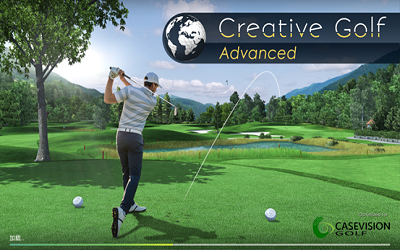
Creative Golf is the latest generation of golf simulation software for golf simulators and training facilities. With over 200 courses, different game modes, and fun games, Creative Golf Advanced offers more than just on-course simulation; it boasts a wealth of powerful practice and gaming features. Whether you want to practice specific shot techniques or simply enjoy golf with your family, fun games such as mini-golf, target golf, steeplechaser golf, kids' courses, and a practice range (for practice, team training, and club fitting) will bring you and the whole family a wonderful golf experience.
It consists of two parts: (1) Creative Golf Advanced, a standard simulator software for playing on the course, training, and fitting clubs in the workshop; and (2) Golfsimo, a golf game.
With its tour-level high-precision data and extremely low data latency, iTrack empowers Creative Golf Advanced to deliver an unparalleled and realistic experience.
(1) Realistic physical model: Creative Golf's cutting-edge simulation physics model, built upon years of R&D experience and achievements in golf simulation, will bring us a more realistic and accurate experience. With the support of iTrack, all kinds of trajectories, such as Draw, Fade, Hook, and Slice, can be perfectly presented.
(2) Real stadium: Over 200 real golf courses from around the world. From oceanfront courses to rugged mountain courses, from dune courses to pristine forest courses, there's something for everyone. These golf courses were created based on LiDAR and satellite measurement data, as well as hundreds of course photographs. The visuals are incredibly detailed and realistic.
(3) Realistic gaming experience: Experience the thrill of competition and the joy of gaming. Multiple game modes cater to your needs for serious practice, online tournaments, and entertainment for all players.
1. Connecting iTrack with Creativegolf
(1)Download iTrack For CreativeGolf.exe from www.casevisongolf.com.
(2)Turn on iTrack and wait for it to start up. Connect iTrack to the Creativegolf simulator. Two connection methods are supported: 1. WiFi connection, 2. Direct Ethernet cable connection.
① WiFi connection:
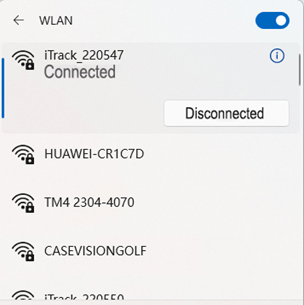
After iTrack starts up, you should be able to find iTrack's WiFi in your computer's network connections. Connect your computer to this hotspot. The default password for the iTrack hotspot is 12345678.
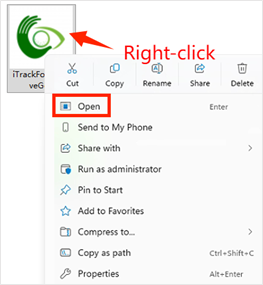
Right-click the iTrackForCreativeGolf program and click "Open" to run the iTrackForCreativeGolf program.
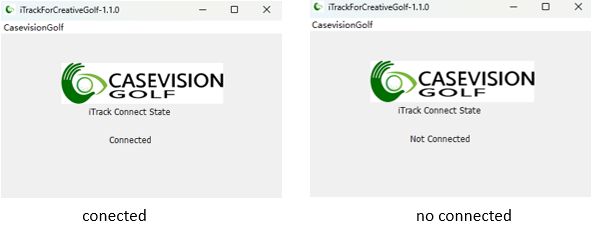
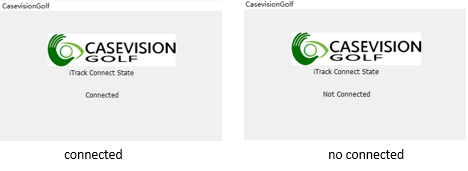
iTrack For Creative Golf will display "Connected," indicating that the device is connected. If the computer is not connected to iTrack WiFi, the plugin will display "No connect," indicating that the device is not connected.
② Straight-through network cable:
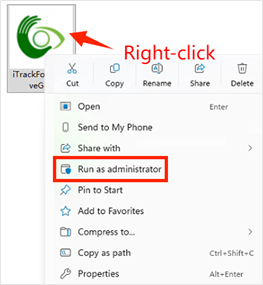
When connecting via a direct network cable, you need to right-click the iTrackForCreativeGolf program and run it as administrator.
iTrackForCreativeGolf will display "Connected," indicating that the device is connected. If the computer is not connected to iTrack WiFi, the plugin will display "No connect," indicating that the device is not connected.
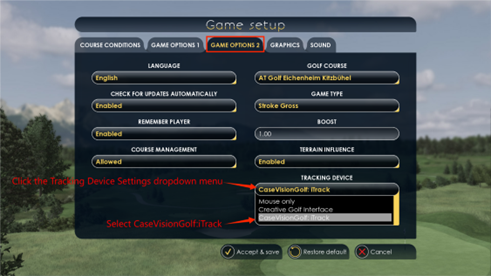
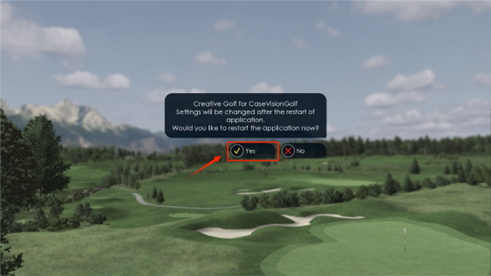
(3) Launch the CreativeGolf emulator. After entering the emulator's main interface, you need to adjust the "Tracking Device Type" in the settings. Click on the tracking device settings to bring up a drop-down menu, select "iTrack," and then click "Accept and Save." In the pop-up message "Settings will change after restarting the program," select "Yes." This will enable the emulator to link with the iTrack device.
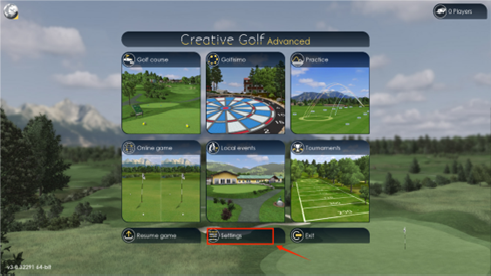
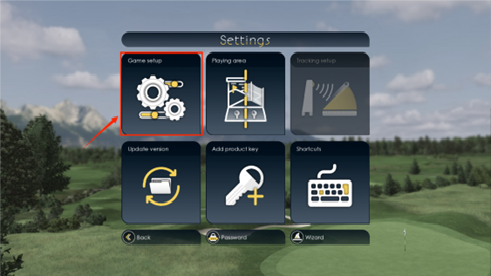
(4) After the emulator restarts and the settings are successfully completed, you can enjoy playing the CreativeGolf emulator.
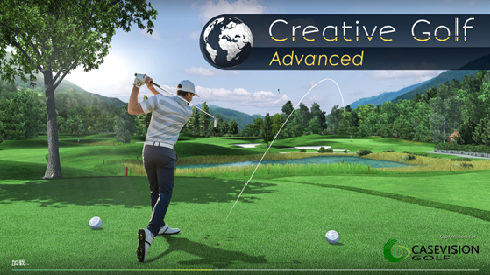
2.Creative Golf Advanced
As a standard core simulator software, it focuses on professional scenarios, providing three core functions: playing on the course, systematic training, and precise club fitting, meeting the needs of professional players, coaches, and equipment setup personnel.
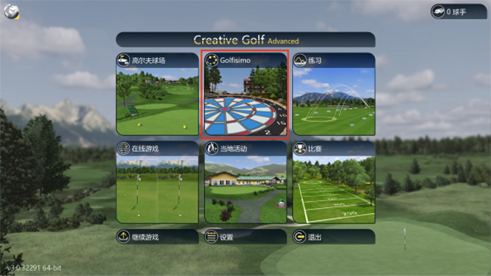
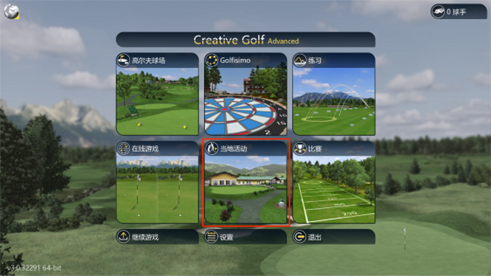
Main interface: Divided into six modules: Golf Course, Games, Practice, Online Games, Local Events, and Competitions.
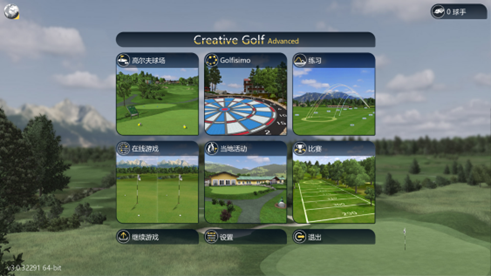
Description of the icons:

Read information about the software developer and the third parties involved in developing the software.

Entering the player list allows you to view players or add and delete players. You can also do this when selecting a game.

Continue playing your saved game. Games can be saved in the cloud or locally on your computer.

Default game settings. Please refer to the "Settings" section for more details.

Exit Creative Golf / Golfisimo.
2.1 Next game
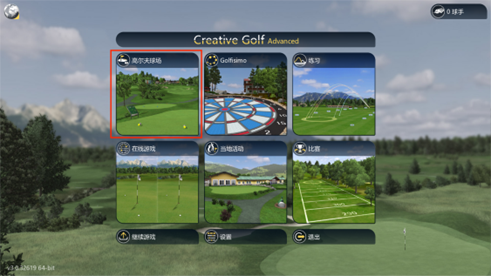
This app allows players to play standard golf courses on a variety of realistic golf courses. Once logged in, you can select the golf course, game type, and other details, or you can start playing immediately.
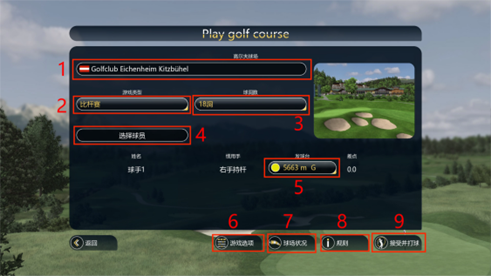
(1) Choose a course: Select the golf course you wish to play at. Click the "Golf Course" button to enter the all courses interface and select the course you want to play at.
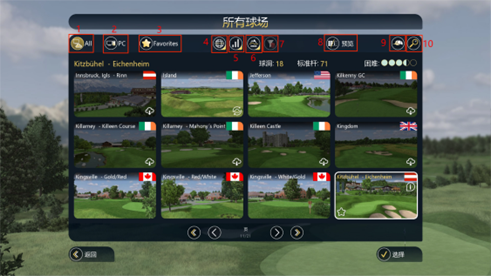
① All Courses: View all courses on the Creative Golf server, whether or not you have downloaded them.
② Local Courts: View courts downloaded to your computer.
③ Add courses to your favorites: View the courses you have added to your favorites.
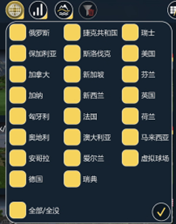
④ Country/Region Filter: Clicking this will display a drop-down menu where you can select or deselect stadiums from different countries/regions.
⑤ Difficulty Filter: Clicking this option will display a drop-down menu where you can select or deselect courses based on their difficulty level.
⑥ Type Filter: Click to display a drop-down menu, where you can check or decheck the fields that display terrain conditions.
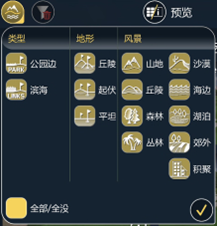
⑦ Clear Filters: Clears all filter criteria.
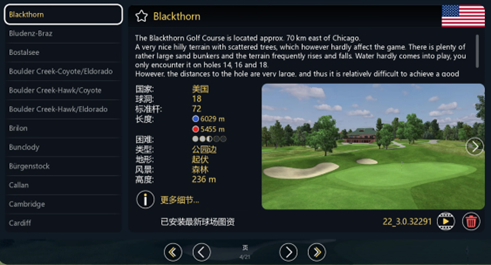
⑧ Preview the stadium: Clicking this will switch the view to a list view where you can see detailed information about the stadium.
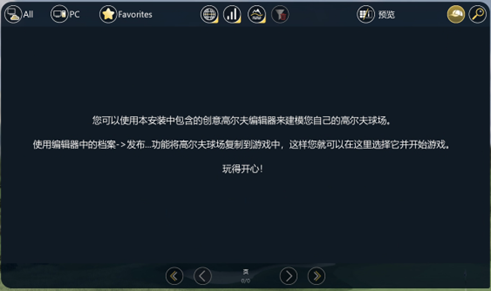
⑨ Custom Courses: Courses created using the Creative Golf Editor.
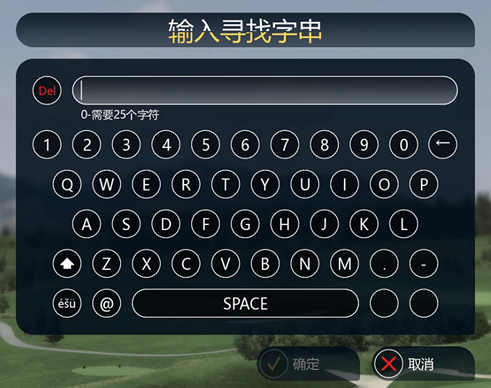
⑩ Search for stadiums: Search by stadium name or words in the stadium name.
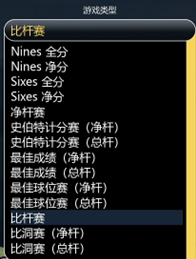
(2) Course Type: It should be "Game Type," or "Game Mode," not "Course Type." Clicking it will display a drop-down menu where you can select the golf game type.
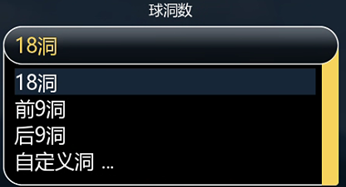
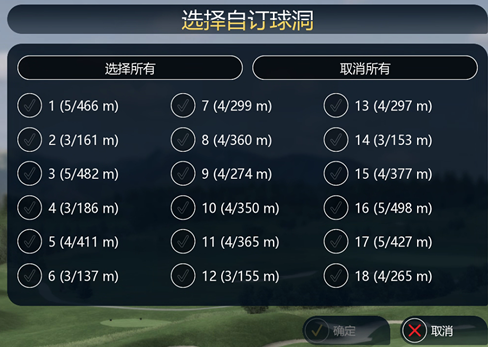
(3) Number of holes setting: Clicking this option will display a drop-down menu where you can select the number of holes you want to play.
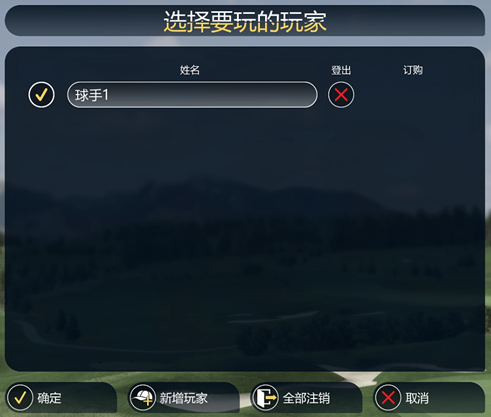
(4) Select Player: Enter the player list to view players or add/delete players.
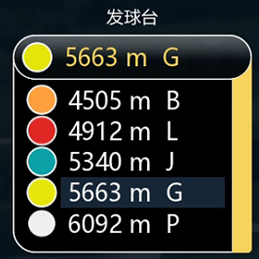
(5) Tee settings: Click to display a drop-down menu where you can configure the tee you want to use.
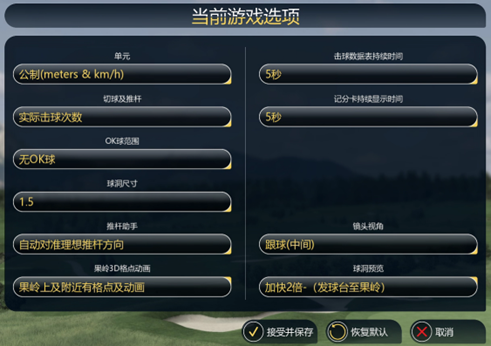
(6) Game Options: Configure parameters such as unit size, OK circle range, and hole size for the currently selected course.
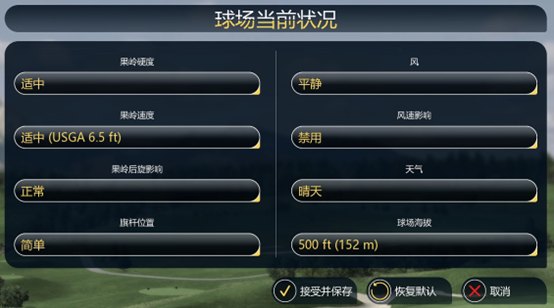
(7) Course conditions: Configure the greens and environment for the currently selected course.
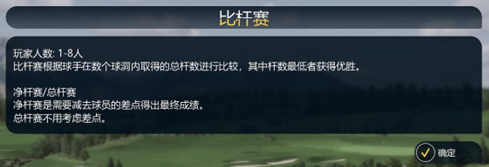
(8) Rules: The game rules for the selected court type.
(9) Confirm and start playing: Click to load the selected court and start the game.
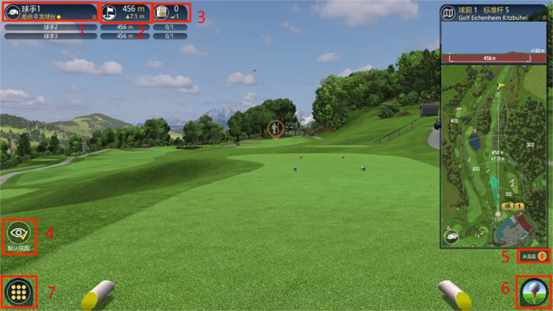
①Current Player: Shows which player's turn it is. Click the small arrow in the lower right corner to expand or collapse the player list.
②Distance and Altitude: Displays the distance and elevation difference to the flagpole.
③Total Score: Displays the total number of strokes and the current stroke number.
④Default view: Clicking this will restore the scene to the default orientation after rotation.
⑤Device Status: You can view the status of Launch Monitor devices.

This status indicates that there is no connection between the computer and the Launch Monitor device.

This status indicates that the computer is connected to the Launch Monitor device, but the Launch Monitor is not locked.

This status indicates that the computer and Launch Monitor device are connected, the Launch Monitor has locked the ball, and you can hit the ball.
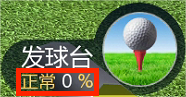
⑥Terrain Influence: Clicking this will show you how the terrain and the ball's position affect the hitting data and the ball's flight data.
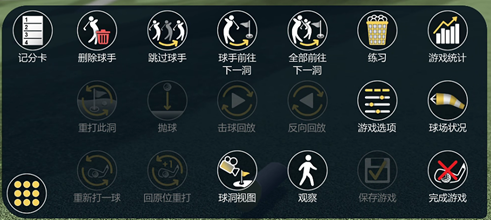
⑦Menu: Clicking this will open the menu list where you can perform various operations.
3.Golfsimo
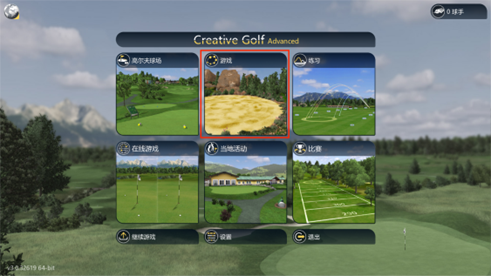
Golfisimo is an extension of these games, containing several fun games to improve your golf skills. Golfisimo can be purchased and used separately or integrated into the Creative Golf program. Without purchasing Golfisimo, you can only choose from four free games when you enter the game.
3.1 Free Games
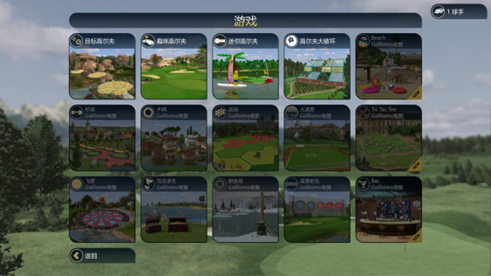
(1) Target Golf:
This fun game can improve your shot accuracy. The course is dotted with islands of varying sizes and distances. Players need to hit the ball onto an island within a set number of shots to score points, which depend on the distance from the hole to the island. Players can score points on multiple islands.
(2) Fun Golf:
Fun Golf offers shorter golf courses, such as putting practice ranges (P&P) and par-3 courses, designed for beginners and children. The fairytale-themed courses feature numerous themed decorations and follow the same rules as standard golf, but with significantly shorter holes, allowing players to achieve scores comparable to adult players.
(3) Mini Golf:
On a mini-golf course, use only the putter to get the ball into the hole with the fewest possible strokes.
(4) Golf Destruction:
This is a fun game primarily aimed at teenagers. The game scenes consist of a series of dilapidated buildings or greenhouses. Players score points by breaking window panes. They need to collect points in multiple scenes, according to the number of hits allowed in each scene, and strive to get the highest score.
3.2 Golfisimo Extension Games
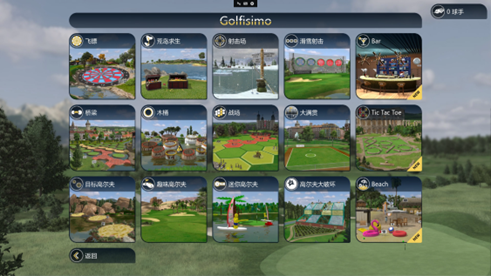
After purchasing and installing the Golfisimo package, you'll gain access to more courses and new types of golf games in the "Games" section. These fun games help improve your skills, accuracy, shot consistency, short game technique, and overall strategy. Golfisimo can also be used as a standalone application. Its installation method is the same as Creative Golf. If Creative Golf is already installed, Golfisimo will be integrated into the existing "Games" section, which will be renamed Golfisimo, allowing you to manage all your games from a single interface.
Golfisimo can also be used as a standalone program. Its installation method is the same as Creative Golf. If Creative Golf is already installed, Golfisimo will be integrated into the existing "Games" section, which will be renamed Golfisimo, allowing you to manage all your games through a single interface.
(1) Darts:
This game can be played by one or more players. Players can choose from standard darts, high-stakes matches (6 or 9 rounds), 301-round elimination matches, and 501-round elimination matches. These games are displayed on three large targets in a natural environment, which players can view from different distances, in addition to a vertical target.。
(2) Survival on a Desert Island:
This game is suitable for 1 to 8 players. The goal is to reach the mainland from a deserted island with as few hits as possible. On some islands, you may receive a reward that allows you to get closer to the mainland, or you may be penalized by having your most recent hit canceled.
(3)Shooting range:
This game is suitable for 1 to 8 players and can improve players' reaction speed, situation assessment ability, decision-making ability, and correct shooting skills under time pressure. Players shoot at floating ice blocks within a specified time interval to get as many points as possible. Hitting a floating ice block earns 100 points, and hitting the statue in the middle of the ice blocks earns a bonus of 300 points.。
(4) Ski shooting:
This game is suitable for 1 to 8 players. Under time pressure, players must maintain consistency in their shots, accurate launch angles, and precise chip shots. These goals are designed with the launch angle of the chosen club at full power in mind. Each hole has a time target. The goal of the game is to complete the entire course in the shortest time, with the timer starting from the player's first shot on each hole. The game is interrupted during flight or when entering the menu. The player with the shortest total time wins.
The course consists of six fairways (holes). Please choose the hole you wish to play based on your skill and ability. All markers on the green and holes are designed to be played with the same club. The rules for each hole are as follows:
① Ideally, you should be able to reach the green in three shots using the same club.
② Try to hit five targets with five strokes; hit one target with each stroke. Missing a target will result in a 30-second penalty.
(5) Bridge:
This game requires two players or two teams (red/yellow). Players must try to connect the three parts of a city along a path, building bridges between the islands. They need to hit adjacent islands to build bridges. Players have one, two, or three attempts, depending on the game settings. The red player uses red bricks to build bridges, and the yellow player uses yellow stones. If the ball hits a river or an already occupied island, and a player has used up all their attempts, the opposing team continues. Players attempt to connect the three parts of the city by building bridges between the islands along a path, thus forming a city. The first player (or team) to connect all three parts of the city wins.
(6) Wooden barrel:
This game requires two players or two teams (red/yellow) and is used to practice short-distance chipping. Players try to hit the balls into the buckets, causing them to sink. If a player fails to hit their own bucket or hits the opponent's bucket, they lose their turn. Once all of a player's (or team's) balls are at the bottom of the water, they must hit a mine to secure victory. However, if a mine is hit during the game, the game ends, and the team loses.
(7) battlefield:
Inspired by the Wars of the Roses in English history, this game pits two players or two teams (York and Lancaster) against each other. The goal is to gradually capture tiles and eventually reach the opponent's command area below the castle. Players can only move forward to adjacent tiles but can hit any tile. Hitting an already occupied tile makes it available again. Players (or teams) take turns attacking after every two hits. If a player hits a combat unit in the center of the field, they gain two additional hits. The first player to reach the opponent's command area wins.
(8) Grand Slam:
This game requires 2 or 4 players. The rules, scoring, and result display are similar to those of online games. Each game consists of only one round. Before the game begins, players can choose one or more courses of varying sizes. The course changes every two rounds. The first player tees off and has two shots. The first shot determines the hole position, and the second shot determines the green size. If a player misses the green with either shot, the opposing player scores 15 points. Conversely, if they both miss, the other player scores 15 points. If the ball hits the green, it is considered a successful return, and a new hole position is determined. They then set the new green with their next shot. If the return shot hits the green, 15 points are awarded; otherwise, 15 points are awarded for the serve.
(9) Bar:
This game is suitable for 1 to 8 players, who need to use a golf ball to break bottles and other items in a bar environment.
(10) Tic Tac Toe:
This game is suitable for 2 players. The first player to occupy three empty spaces in a straight line wins a round.
(11) Beach:
This fun game, designed for children and teenagers, is suitable for 1-8 players. Players use a ball to smash various objects on the beach. The game takes place in six different scenes on the beach, which alternate after a preset number of shots. The score depends on the difficulty of the mission.
4. Practise
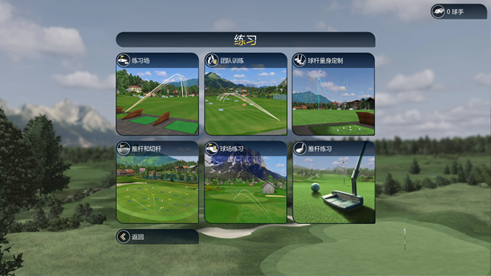
You can practice your swing in three modes (driving range/team training/custom clubs) to improve your swing level;
Practice chipping and putting (chipping and putting, putting); or practice your shots from any position on a selected golf course.
4.1 Practice range, team training, custom-made clubs
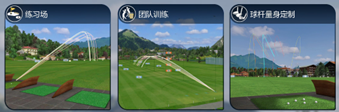
Practice mode: Suitable for solo practice, you can choose from multiple hitting areas and training conditions.
Team training mode: Suitable for small groups led by coaches to conduct regular training, and can compare player performance, including dispersion and average.
Customized Cue Mode: The cue fitting function is very useful when purchasing cues, such as when shopping. You can set the brand name of the cue to test and the color of the shot trajectory to try out various cues from different brands. The software will evaluate which cue is most suitable based on various parameters (running distance, total distance, backspin, dispersion) and even average values.
After selecting one of these three practice modes, you will be taken to the practice range settings interface. This practice range settings interface is applicable to these three practice modes: practice range, team training, and custom clubs.
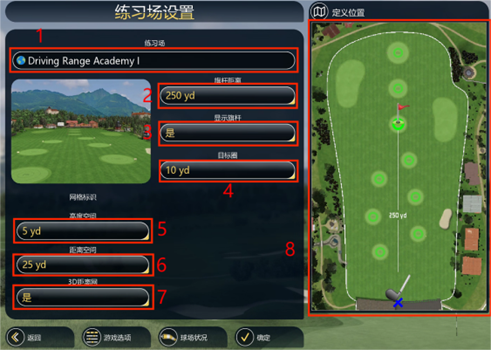
① Practice fields: You can choose different practice fields.
② Flagpole distance: You can select from the preset hole distances at the driving range.
③ Flagpole distance: You can select from the preset hole distances at the driving range.
④ Target Circle: Allows you to set the diameter of the aiming circle around the selected hole area.
⑤ Height Space: Sets the grid height spacing parameter in the 2D view of the practice area.
⑥ Distance Space: Sets the grid spacing parameter displayed on the ground in the practice area.
⑦ 3D Distance Grid: You can choose whether to display the grid in the 3D view.
⑧ Define Position: You can click anywhere in the "Define Position" window to change the player's position and thus the distance to the hole.
(1) Putter and chipper
Practice short game shots and putting on the practice green. Selecting this mode will take you to the "Select Player Position and Flag Position" settings screen.
Green circle: Represents the hole location, which can be selected to determine the hole location.
Blue cross: Represents the player's position on the green. You can click to determine the player's position on the green for putting practice.
Red cross: Represents the player's position outside the green. You can click to determine the player's position outside the green for chipping practice.

(2) Field practice
Practice hitting the ball from any position on a real golf course to improve your skills in special situations or on specific terrains. Selecting this mode will take you to the "Field Practice" settings interface.
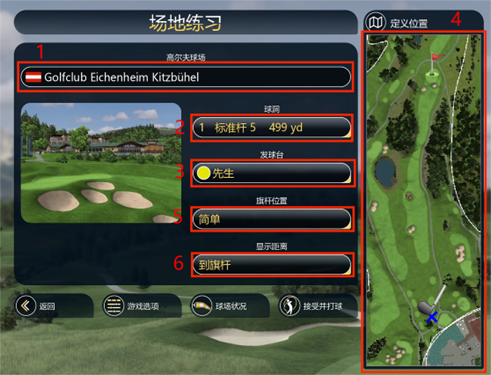
① Golf Course: Select the golf course you want to play. Click the "Golf Course" button to enter the all courses interface and select the course you want to play.
② Hole: Select the hole you want to play.
③ Teeing table: Select the preset identity to change the teeing table position.
④ Define Position: You can click anywhere in the "Define Position" window to change the player's position and thus the distance to the hole.
⑤ Flag position: Select the difficulty level of the hole on the green to change the hole's position.
⑥ Display distance: Select whether to display the distance from the tee box or the distance to the flagstick.
(3) Putting practice
Improve your skills by practicing putting on real golf course greens. Selecting this mode will take you to the "Putting Practice" settings screen.
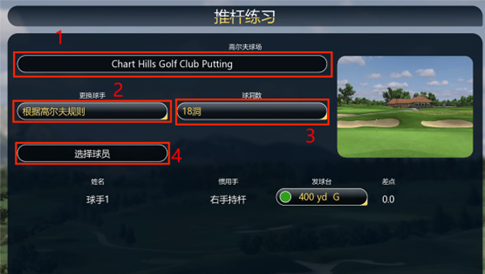
Golf Course: Select the golf course where you want to practice your putting. Click the "Golf Course" button to enter the all courses interface and select the course you want to practice on.
Change of player:
Number of holes: Set the number of holes you want to play.
Select Player: Enter the player list to view players or add/delete players.
5. Online games
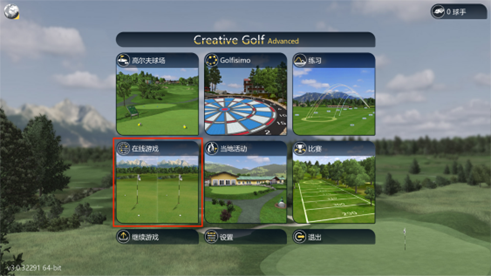
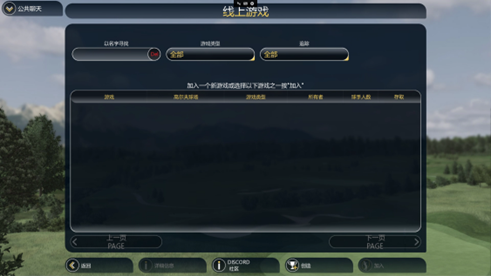
Online games allow you to play with players from all over the world simultaneously. You can join existing games created by others, or create your own game and wait for others to join your room.
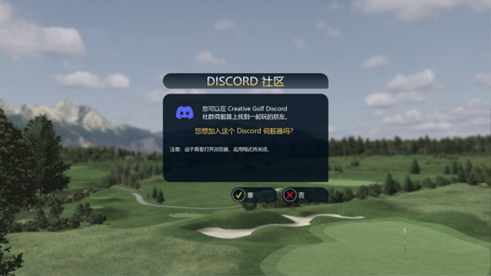
You can click the "Discord Community" icon to find teammates or suitable matches; you can also access it directly from the game.
You can also click the "Create" icon to create a game. First, define the game name and game type, and specify whether it is a public or private game.
You can click the "Discord Community" icon to find teammates or suitable matches; you can also access it directly from the game.
You can also click the "Create" icon to create a game. First, define the game name and game type, and specify whether it is a public or private game.
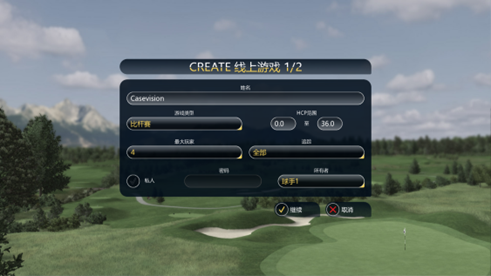
If it's a private game, you must set a password and share it with your gaming partners.
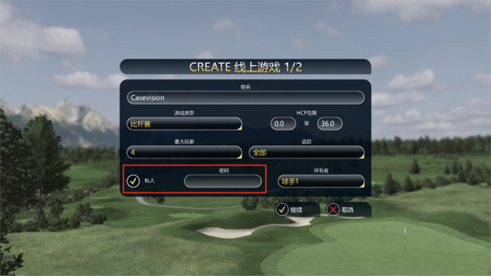
Choose to create a private room for your friends and provide them with the room name and password. Then proceed with other game parameter settings.
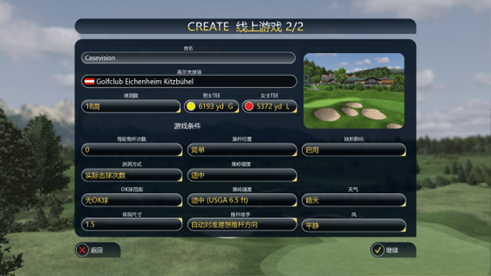
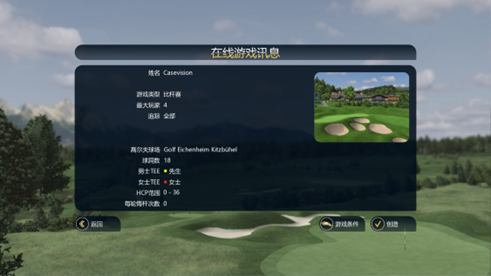
After setting the game parameters, click "Continue" to view the game information you created, and then click "Create" to complete the game creation.
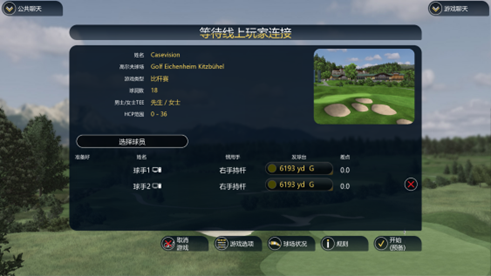
In the game room you created, wait for players from the public server to join your game; or, wait for your invited friends who know the password to log in, and then click "Start" to begin the game.
6. Local events
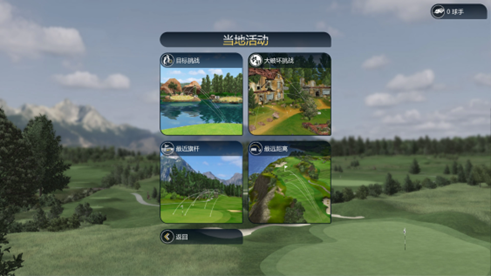
These competitions are conducted on a single computer, requiring no internet connection; the results are also saved only on that computer. Once logged in, players can choose from four game activities: Goal Challenge, Destruction Challenge, Closest Flagpole, and Longest Distance.
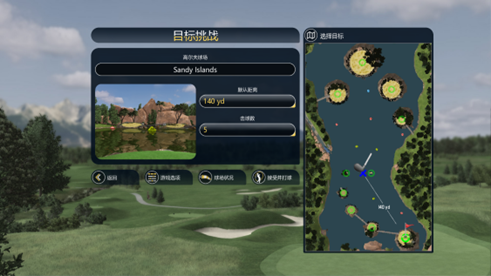
(1) Goal and Challenge:
Compete for accuracy on special courts, aiming to hit the ball at target islands located at specific distances from the tee box. In the settings interface, you can select the court, set the target distance, and the number of shots for each player. You can also adjust the distance by clicking the circle on the island in the target selection top-down view on the right.
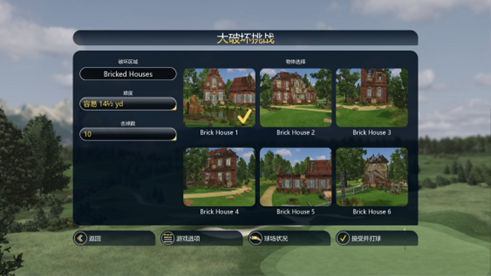
(2) Great Destruction Challenge:
This is a fun 10-point shooting competition that tests players' accuracy in breaking window glass at short distances. The competition is set in a dilapidated old building complex. In the settings menu, you can choose to destroy the scene, adjust the target difficulty, and set the number of shots for each player.
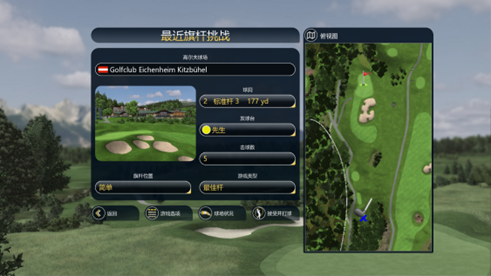
(3) Recent flagpole:
Choose a par-3 hole and a tee position to compete against each other and see who gets their ball closest to the hole and has the highest accuracy. In the settings menu, you can select the course, set the hole distance, tee position, number of shots, difficulty level of the flagstick position, and game type.
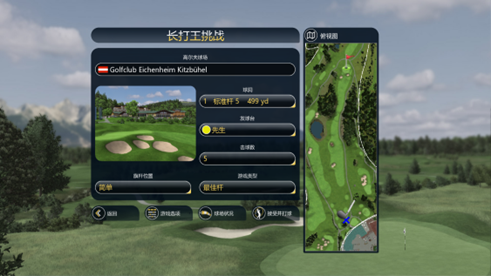
(4) Maximum distance:
In the selected course, tee off from the designated tee position and compete to hit the longest shot. In the settings interface, you can select the course, set the hole distance, tee position, number of shots, difficulty level of the flagstick position, and game type.
7. Match
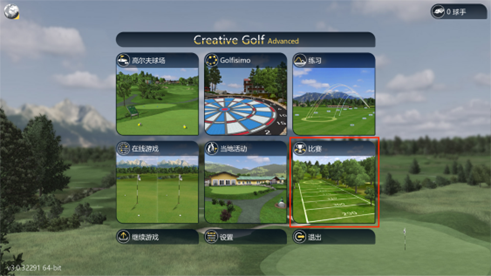
Online tournaments require an internet connection and are only open to players logged into a Creative Golf account. These tournaments allow anyone with Creative Golf or Golfisimo software to compete against others around the world. You can create tournaments for all Creative Golf users, regardless of their measuring equipment; you can also create tournaments specifically for users of a particular system. Additionally, you can create private tournaments for friends, indoor golf centers, or clubs.
7.1 Playing ball:
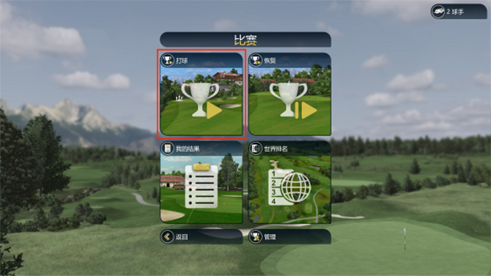
Join online tournaments. You can join tournaments with a Creative Golf server personal account. You can participate in open tournaments or private tournaments created for specific user groups.
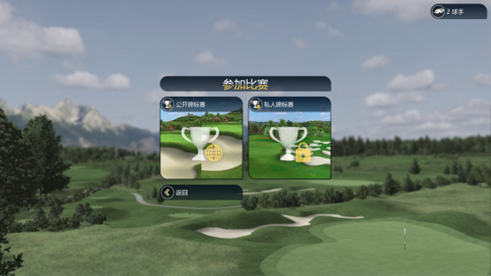
(1) Open Championships:
These tournaments are open to all players worldwide using the Creative Golf or Golfisimo programs. Open tournaments are created only by authorized Creative Golf creators.
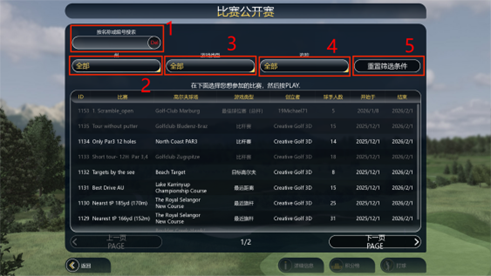
① Search box: Search for matches by name or number.
② Status: Filter tournament time validity periods (in progress/completed/about to start).
③ Game Types: Filter by different game types. Stroke Tournament (Gross/Net), Stuberford Tournament (Gross/Net), Longest Drive, Closest to the Pin, Target Challenge, Demolition Challenge, Target Golf, Demolition Course, Mini Golf, Best Ball Tournament (Gross/Net), Texas Hold'em Tournament (Gross/Net).
④ Tracking: Filter events created based on device type.
All: All Creative Golf / Golfisimo users are eligible to participate in this tournament, regardless of the type of launch monitor.
Only for my device type: Tournaments are specific to your golf measuring device type. If you select "Only for my device type," you will only see tournaments applicable to your specific measuring system.
(2) Private tournaments:
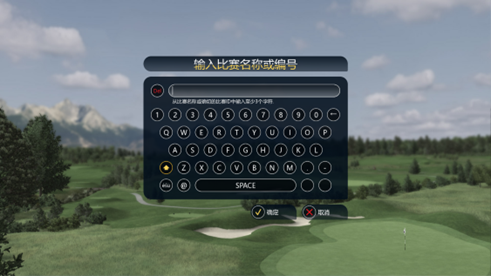
Anyone with a Creative Golf account can create private tournaments for their friends, club, or indoor gatherings. You can participate in private tournaments if you know the tournament name or ID number and password. This information must be provided to you by the tournament creator.
7.2 Recover:
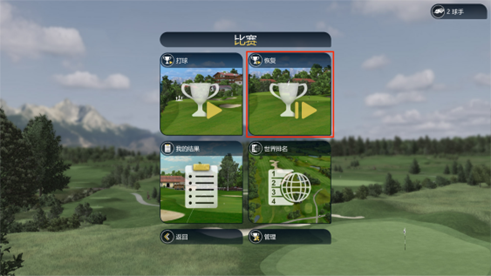
Any open tournament can be saved before it ends and can be continued at any time. Incomplete tournaments can only be saved at the end of the game (save and quit), and saving is required to exit the game. This maintains the fairness of the competition and ensures that players cannot start open tournaments multiple times from the same position to achieve a better result.
7.3 My results:
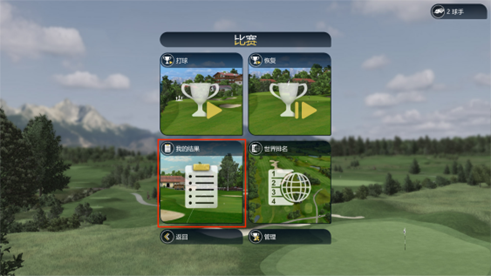
Here you can view all your completed matches and match results. Only logged-in players can see their results in the list. Please check the "Online Players" list to confirm if you are logged in.
7.4 World Ranking:

Each event awards points, which are distributed to the winner and all participants. The point value for each event is dynamically determined based on its difficulty. Participants who complete the event will receive points, which will be added to their world rankings for that year. You earn points simply by participating in and completing the event.